
Two-Step Sign-In (2FA): How to Set It Up
A simple guide to setting up two-step sign-in with Google Authenticator: download the app, scan the QR code, and enter the 6-digit code.
By Todd Twining
Two-step sign-in (also called two-factor authentication, or 2FA) adds one extra step when you log in to your website. After your password, you type a 6-digit code from an app on your phone. Even if someone steals or guesses your password, they can’t get in without your phone.
If you’ve never used it before, don’t worry. Setup takes about 2 minutes and you only do it once.
Before you start
- Have your phone in hand.
- Have the website’s setup screen (the one showing a QR code) open on your computer.
Is this for your WordPress website? See On your WordPress website for where to find the setup screen.
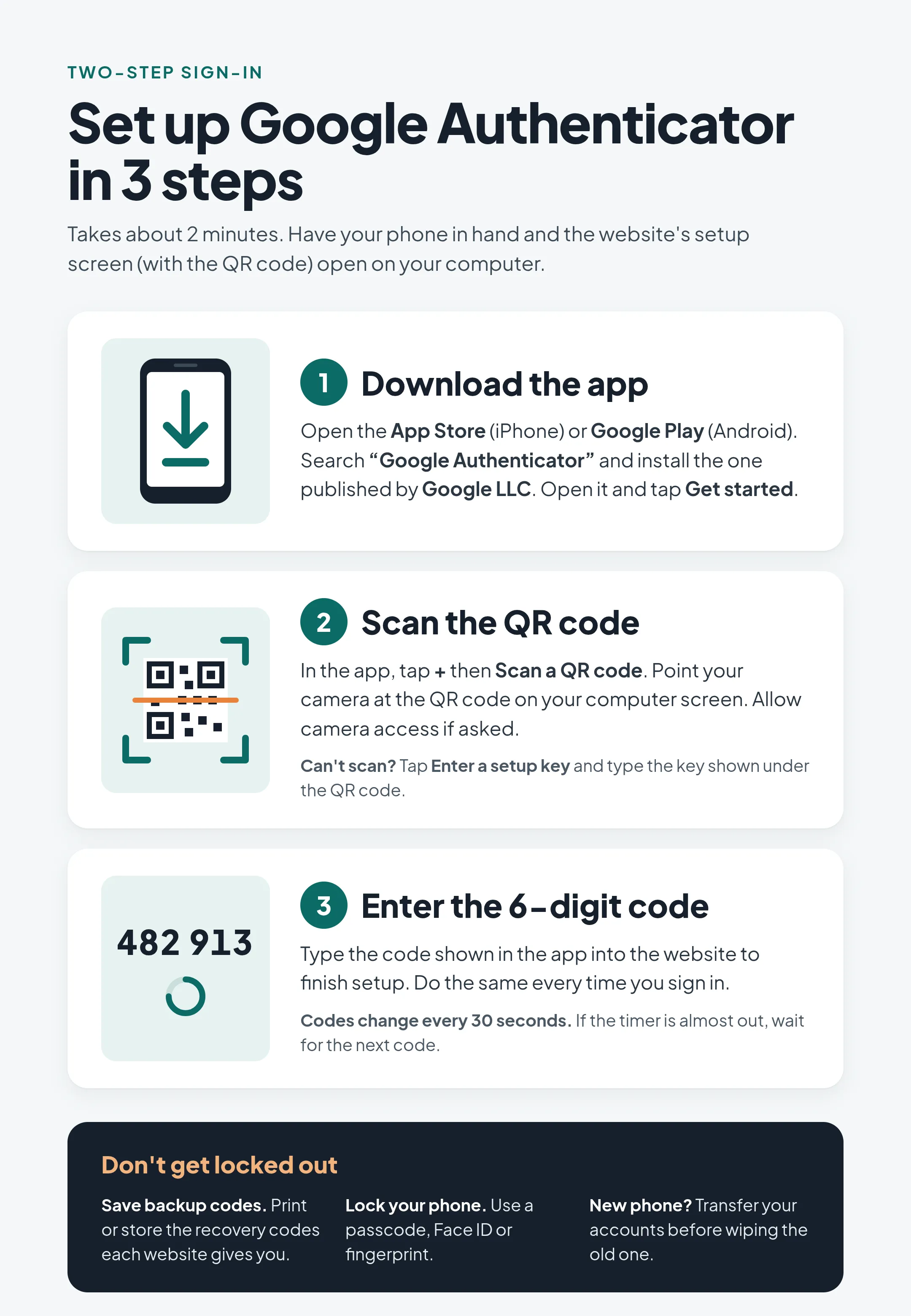
Step 1: Download the app
Open the App Store (iPhone) or Google Play (Android). Search “Google Authenticator” and install the one published by Google LLC. Open it and tap Get started.
Step 2: Scan the QR code
In the app, tap + then Scan a QR code. Point your camera at the QR code on your computer screen. Allow camera access if asked.
Can’t scan? Tap Enter a setup key and type the key shown under the QR code.
Step 3: Enter the 6-digit code
Type the code shown in the app into the website to finish setup.
Codes change every 30 seconds. If the timer is almost out, wait for the next code.
Signing in from now on
- Go to your login page and enter your username and password as usual.
- When asked for a code, open Google Authenticator on your phone.
- Type the 6-digit code shown for your website. That’s it.
On your WordPress website
On WordPress sites we host and manage, 2FA is required for every administrator, editor and shop manager account.
- Log in as usual with your username and password.
- You’ll land on your profile page with a red notice: Two-factor authentication is required for your account. Until 2FA is set up, every other part of the dashboard brings you back here. That’s expected. Nothing is broken.
- Scroll down to Two-Factor Options and find Authenticator App. The QR code is there.
- Follow Steps 1–3 above. Scan the QR code with Google Authenticator, type the 6-digit code into the box under it, and click Verify. That turns 2FA on, and the full dashboard opens up.
- Set up Recovery Codes in the same Two-Factor Options section. Generate your codes and click Copy Codes or Download Codes. Keep them somewhere safe. Each code works once, and WordPress won’t show them again after you leave the page.
From then on, WordPress asks for your 6-digit code right after your password every time you log in. Lost your phone? On the code screen, click Use a recovery code.
Don’t get locked out
- Save backup codes. Print or store the recovery codes each website gives you.
- Lock your phone. Use a passcode, Face ID or fingerprint.
- New phone? Transfer your accounts before wiping the old one. In the app, use Transfer accounts (or sign in to your Google account in the app so your codes back up).
Still stuck?
If a code isn’t accepted, check that your phone’s date and time are set to automatic. Wrong phone time is the most common reason codes fail. Still having trouble? See login troubleshooting or contact us and we’ll help you get in.
Want to know why 2FA matters? Read Google Authenticator: improve your site security.